Take advantage of the full potential of your eBike
Software updates
Release notes
What new features are included in the software updates?

You can find software details in the release notes for all Bosch eBike products including the new smart system.
Update now!
Continuous development
If you want to keep your eBike up to date, you should perform regular software updates. You can easily download new features and transfer them to your eBike via Bluetooth. If you have any questions, please contact your bike dealer. This will ensure that your eBike is always up to date and constantly getting better — for a riding experience as thrilling as the first time, every time.
Current software versions
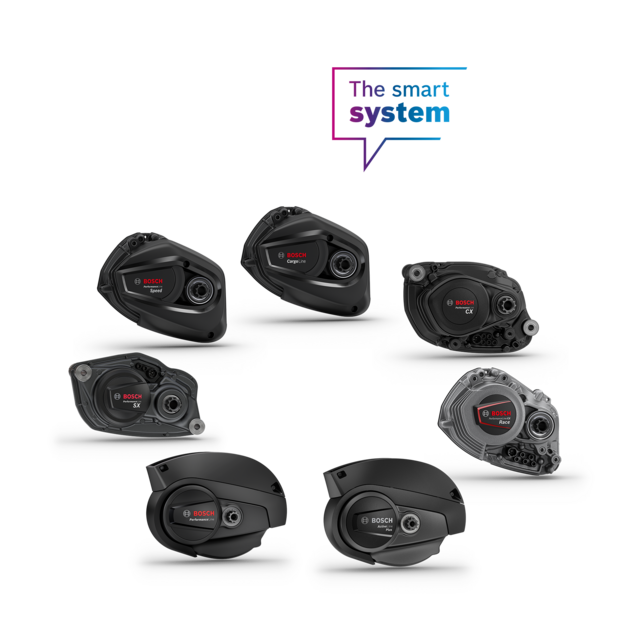

Active Line from MY14: 1.8.6.0
Active Line from MY18: 1.3.3.0
Active Line Plus from MY18: 1.3.3.0
Active Line smart system: 21.12.0
Active Line Plus smart system: 21.12.0
Cargo Line from MY20: 1.1.5.0
Cargo Line smart system: 21.12.0
Performance Line from MY14: 1.8.6.0
Performance Line from MY20: 1.3.3.0
Performance Line smart system: 21.12.0
Performance Line Speed from MY20: 1.1.5.0
Performance Line Speed smart system: 21.12.0
Performance Line CX from MY15: 1.8.6.0
Performance Line CX from MY20: 1.1.5.0
Performance Line CX smart system: 21.12.0
Performance Line CX Race smart system: 21.12.0
Performane Line CX-R smart system: 21.12.0
Performance Line PX smart system: 21.12.0
Performance Line SX smart system: 21.12.0

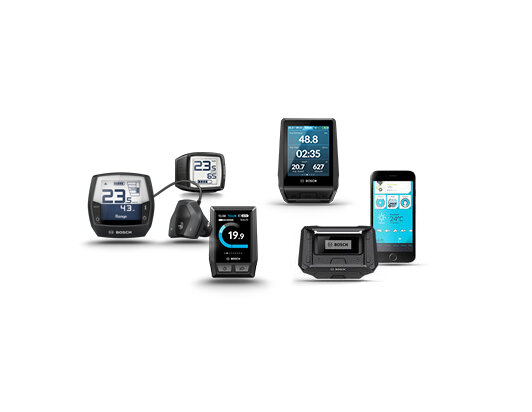
Purion: 1.4.0.0
Purion 200: 21.11.0
Purion 400: 21.3.0
Intuvia: 5.9.2.0
Intuvia 100: 1.1.71
Intuvia 200: 21.3.0
Intuvia Android
Intuvia iOS
Kiox: 4.0.4.0
Kiox 300: 21.3.0
Kiox 500: 21.3.0
Kiox 400C: 21.11.0
SmartphoneHub: 1.0.9.0
LED-Remote: 21.11.0
System Controller: 21.11.0
Mini Remote: 1.3.24
Mini Remote Dropbar: 1.1.20
COBI.Bike Android
COBI.Bike iOS


Check software versions
The software versions can be displayed on the on-board computer.
The smart system
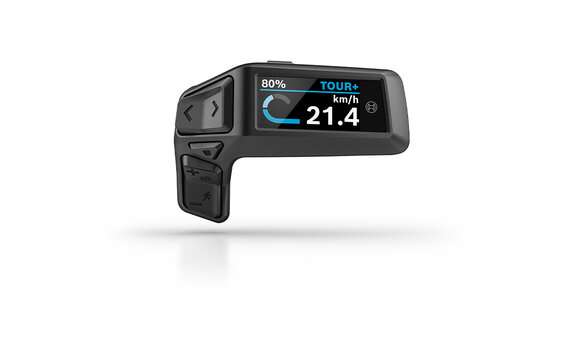
1. Go to the Settings menu
2. Select "My eBike" > "Components"
3. Select "Control unit" > "Software version"

1. Go to the Settings menu
2. Select "My eBike" > "Components"
3. Select "Display" > "Software version"

1. Go to the Settings menu
2. Select "My eBike" > "Components"
3. Select "Display" > "Software version"

1. Go to the Settings menu
2. Select "My eBike" > "Components"
3. Select "Display" > "Software version"
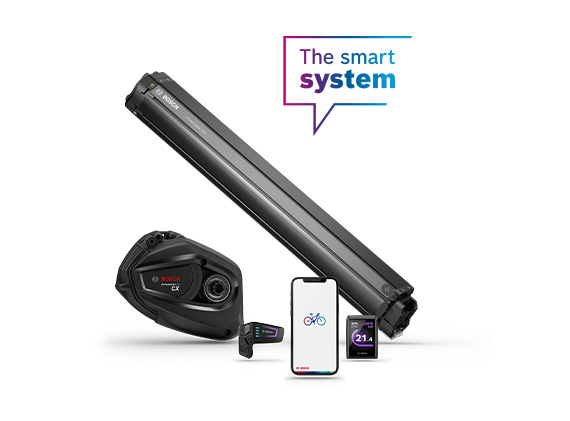
1. Launch the eBike Flow app on your smartphone.
2. If you haven't already done so, connect your eBike to the Flow app.
3. Search for an available software update under Settings (cogwheel icon) > Your eBike.
Bosch eBike system 2
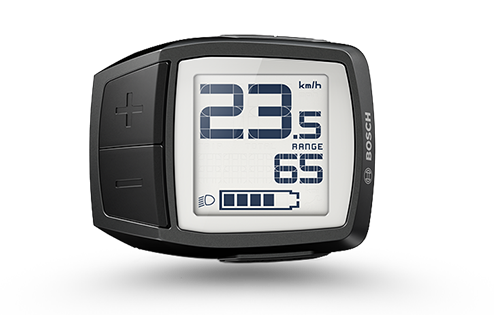
1. With the computer switched off, simultaneously press the "-" and "+" buttons and hold them briefly.
2. In addition, briefly press the "On/Off" button.
3. The current software versions are displayed on the computer.
Displ.: software version of the display
DU: software version of the drive unit
Bat.: software version of the rechargeable battery
1.Bat. /2.Bat.: software versions if two rechargeable batteries are used
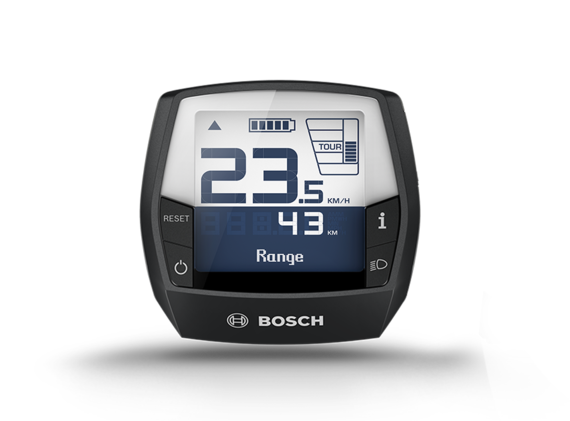
1. Place your Intuvia on the mount and switch on the computer.
2. Hold down the "Reset" and "i" buttons simultaneously until the "Settings" text display appears.
3. Select the desired setting by pressing the "i" key.
Displ.: software version of the display
DU: software version of the drive unit
Bat.: software version of the rechargeable battery
1.Bat. /2.Bat.: software versions if two rechargeable batteries are used
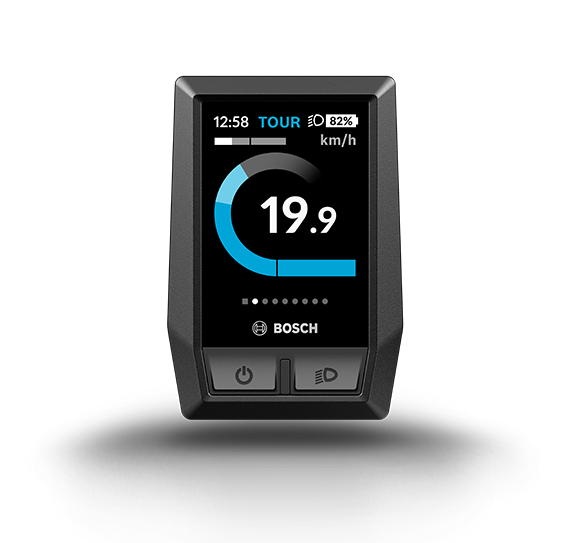
1. Switch on computer.
2. In the Status screen, press the Compact Remote's middle button.
3. Using the + and – buttons on the Compact Remote, select the menu item "My eBike".
4. Then select "Components".
5. Under "Kiox", you'll see the software versions
Displ.: software version of the display
DU: software version of the drive unit
Bat.: software version of the rechargeable battery
1.Bat. / 2.Bat.: software versions if two rechargeable batteries are used
![The [eBike] [on-board computer] [Nyon] with the [display] switched on, which shows [distance] length, [riding time], [speed], and [elevation].](/fileadmin/_processed_/1/6/csm_Bosch-eBike_produkttabelle_big_Nyon-900x665-EN-v2_fd809c3cc2.png?_=1628675163)
1. If there is an active Wi-Fi connection, an automatic check for a new software version is performed. If an update is available, you will receive a notification and can download the new software. You are then guided through the update process.
2. Alternatively, you can search for an available software update under Status Screen > Settings (gear icon) > System Settings.


Close by
Find a local eBike dealer